1. Install
FlowGrab is installed from a folder, not from the Chrome Web Store.
- Unzip FlowGrab somewhere it can stay, for example
Documents\FlowGrab. Do not move it afterwards. - In Chrome, open
chrome://extensions. - Turn on Developer mode, top right.
- Click Load unpacked and choose the
extensionfolder inside the unzipped folder. - Open flow.google.com, open any project, and open the FlowGrab side panel from the extensions button next to the address bar. Pin it there so it is one click away.
chrome://extensions, close Chrome completely, open it again, and press F5 on the Flow tab. The panel tells you if an old copy is still running.2. One Chrome setting
If Chrome asks where to save each file, a batch of twenty becomes twenty dialogs. Turn that off once.
- Chrome menu ⋮ → Settings → Downloads.
- Switch off "Ask where to save each file before downloading".
The panel shows this reminder on first run, and warns you during a run if it notices a dialog is open.
3. The panel
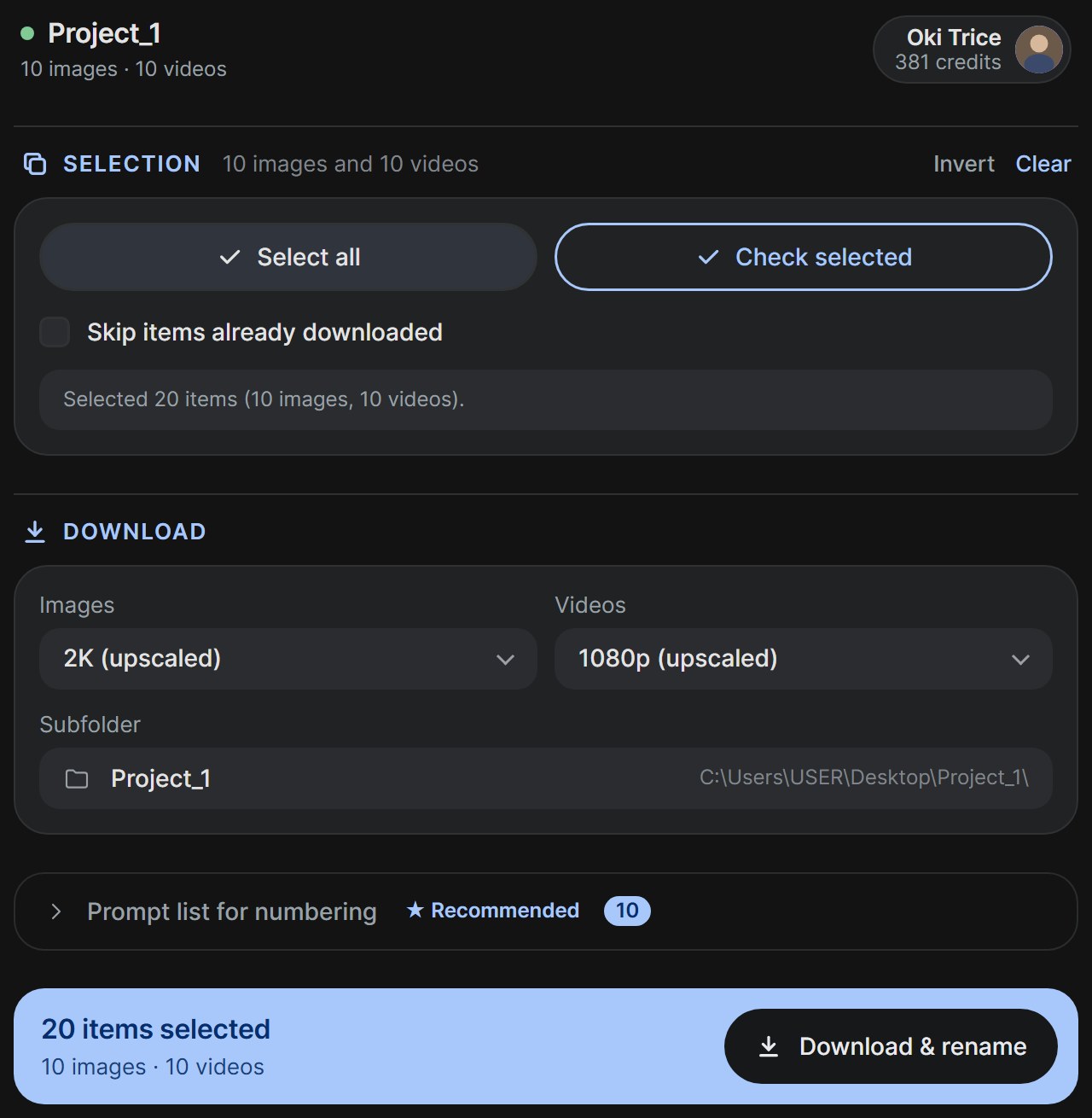
The header shows the project you are in, a green dot when FlowGrab is connected, how many images and videos the project holds, and your Google account with your remaining Flow credits.
Below it, top to bottom: Selection, Download settings, the Prompt list, and the blue download bar. Tools and Advanced sit folded at the bottom.
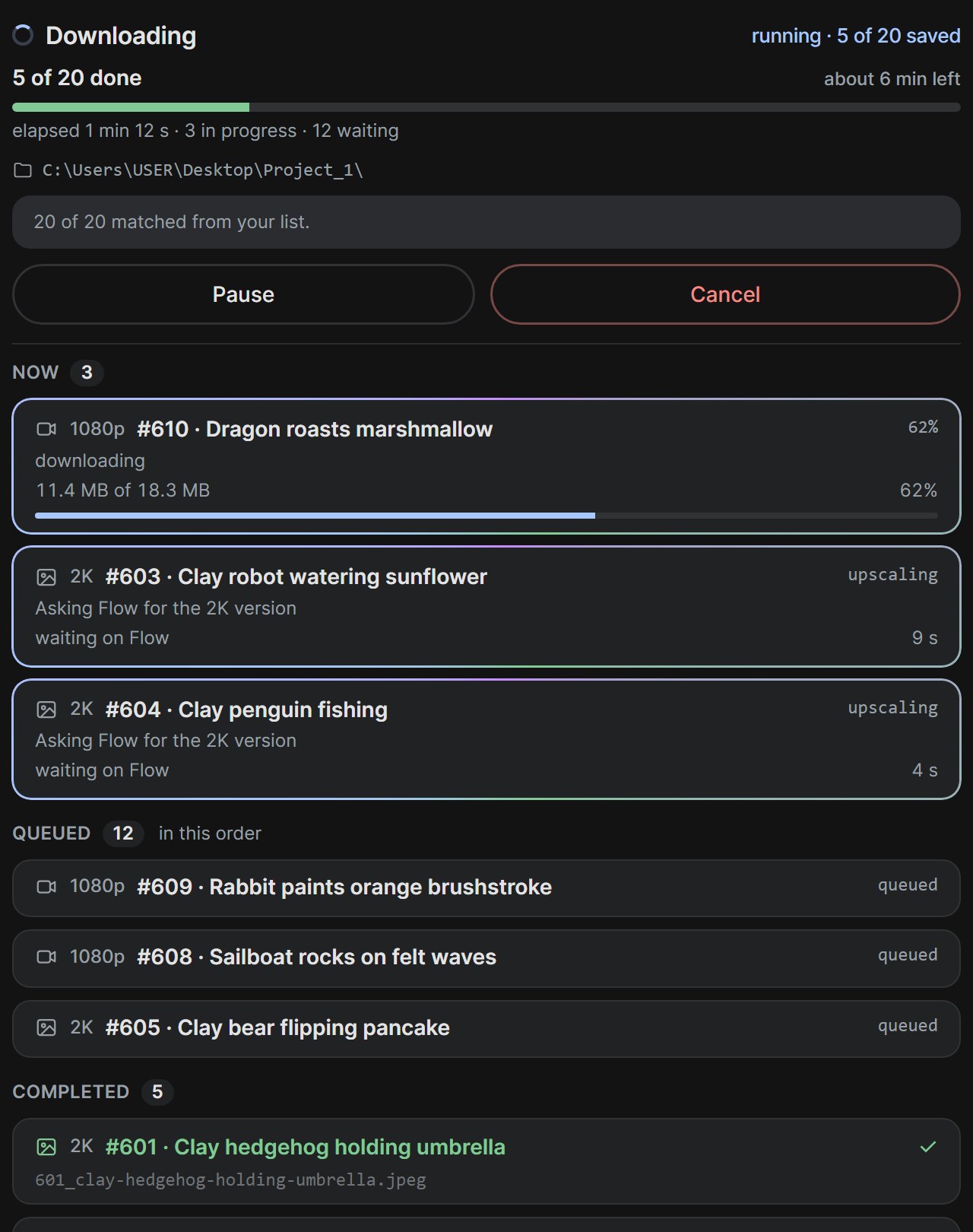
While a run is going the panel switches to the run view: what is happening now, what waits, what is done, how long is left, and where the files are going.
4. Selecting cards
FlowGrab draws a small checkbox in the bottom-right corner of every card in Flow's grid. Four ways to select:
- Tick a checkbox. Shift-click a second one to select the whole range between them.
- Drag a box across cards in Flow, as you would in a file manager, then press Check selected in the panel. The button pulses when Flow has a selection waiting.
- Select all takes everything Flow is currently showing, including cards you have not scrolled to. Flow's own filters and search narrow it.
- Invert swaps ticked and unticked. Clear unticks everything.
Cards you have already downloaded show a green tick. With Skip items already downloaded on, Select all leaves them out and a run skips them.
5. The prompt list
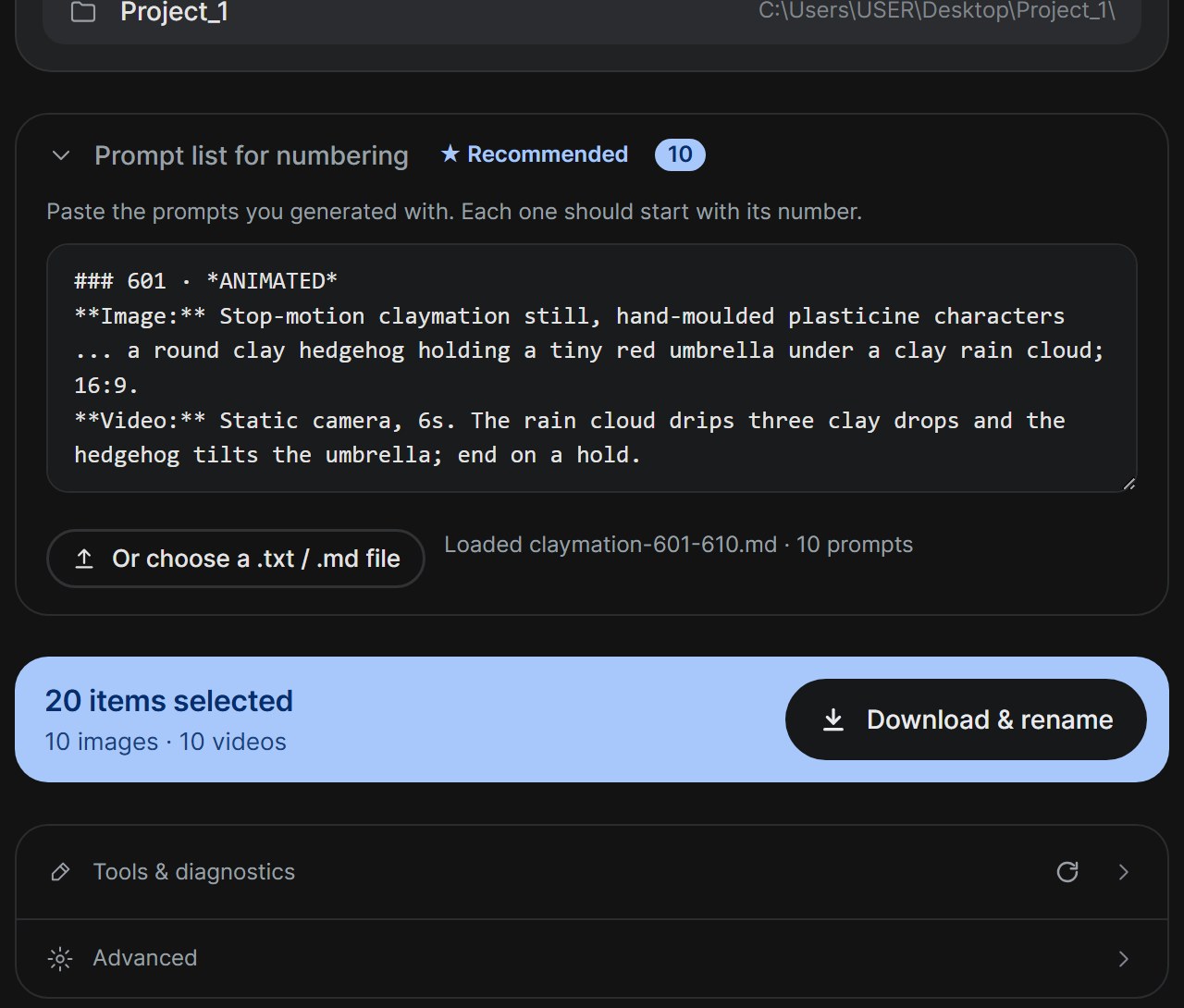
This is where the numbers come from. Paste the list of prompts you generated the scenes from, or load a .txt or .md file. Each prompt must start with its number. Three shapes are understood:
One prompt per line
14. A neon city in the rain, wide shot
15 - The same city at dawn
Scene 16: A tram crossing the bridge

A script, one block per scene
### 172 · ANIMATED
Image: Retro screen-print cartoon ... squaring a row of tins on a shelf
Video: Static camera, 6s. Her fingers nudge the last tin into line.

Plain lines with no numbers at all are numbered 1, 2, 3 in order.
In the script shape, the Image line matches images and the Video line matches videos, so both get the same scene number. Headings such as "171 · CAPTION ONLY" and lines like "Video: no generation" are ignored. Hashes, stars and other Markdown marks do not matter, and it does not matter whether you copy the raw file or the rendered view.
6. Download & rename
Pick the resolution for images and videos, and a subfolder inside your Chrome download folder. Then press the blue button. It reads Download & rename when a prompt list is present and Download selected when it is not. Nothing is asked afterwards.
Images run several at a time and are upscaled to 2K. Videos run one after another and are upscaled to 1080p, which takes a few minutes each. Anything that fails is retried twice; what still fails waits under Failed with a Retry failed button.
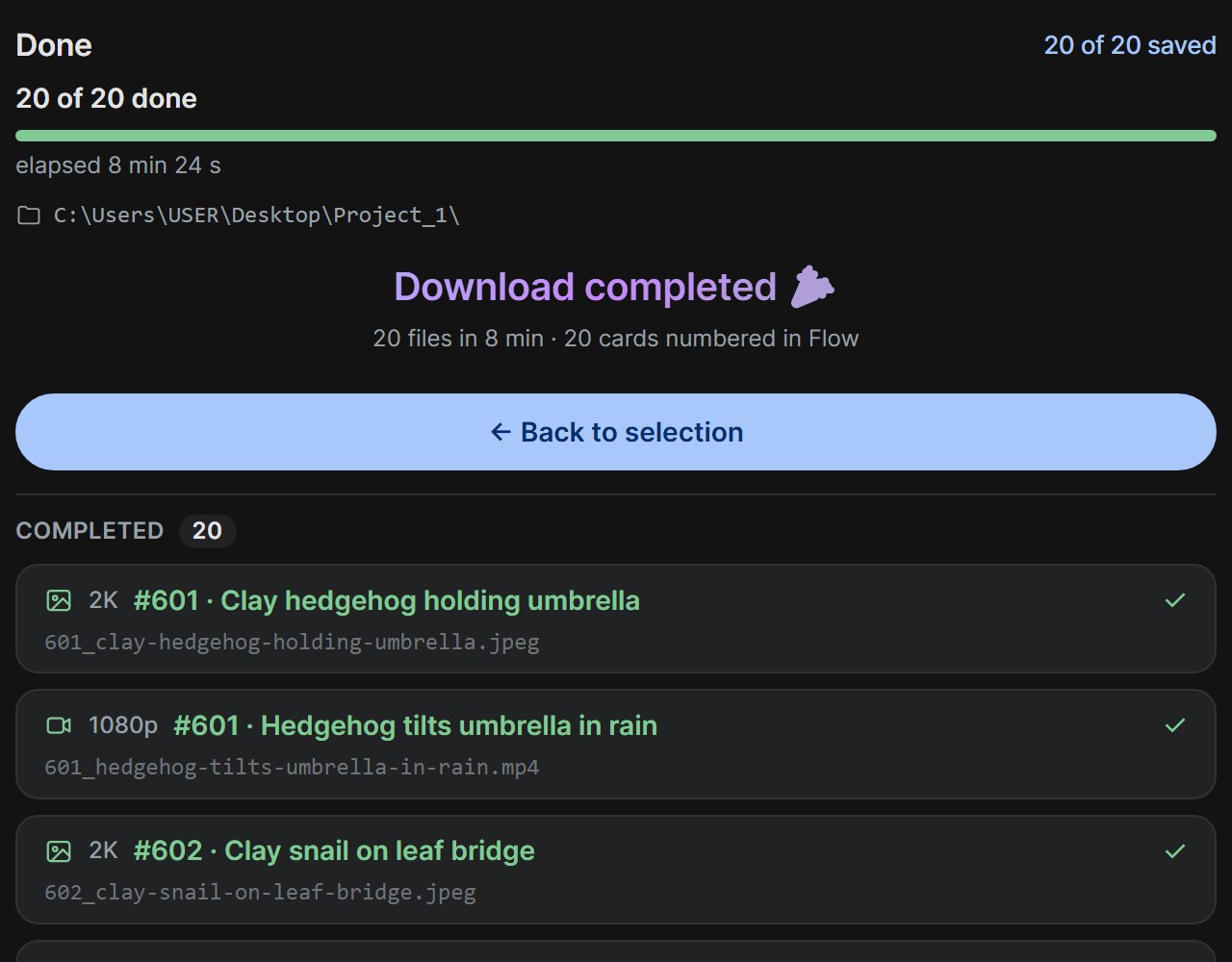
When the last file is in, the title changes to Renaming cards while the numbers are written into Flow, then Download completed with a bell and confetti. Press Back to selection when you have read the summary.
7. How numbers are decided
Each selected card gets its number from the first rule that applies:
- The card is already numbered in Flow, by an earlier run or by hand. That number is final; the list is not even consulted.
- The prompt clearly matches one entry in your list. It is compared by text, so it still works after Flow's Agent has rewritten the style block, as long as the scene itself survived.
- Two entries are close, for example two near-identical prompts. The better score wins; a tie goes to the earlier unused entry.
- Nothing matches. The file is named by its position in the run with a
posmarker,pos007_…, so a wrong number is never invented. The card is not renamed. - No list, but the prompt starts with a number. That number is used. Only with Flow's Agent off, since Agent strips it.
- No list, no numbers. Position in the run: 001, 002, 003.
The run view says what happened, for example "18 of 20 matched from your list · 1 best guess · 1 named by position".
8. File names
Two patterns, under Advanced. With a list: {number}_{prompt}.{ext}. Without: {index}_{name}.{ext}. A pattern is a recipe; each word in braces is swapped for a real value.
| Word | Becomes |
|---|---|
{number} | the number from your prompt list or the card |
{index} | the item's position in the run |
{prompt} | the prompt, shortened and made safe for a file name |
{name} | the card's name in Flow, without its number |
{resolution} | 2K, 1080p, and so on |
{date} | the day the item was created |
{ext} | jpeg or mp4 |
An image and a video of the same scene share the number and differ by extension. Two images on one number become 014_1_… and 014_2_…. Two files that would clash in the folder get a suffix from Chrome; nothing is ever overwritten.
9. Numbers on the cards
At the end of a run each card is renamed to "172 · original name" in Flow, and FlowGrab shows the number as a badge 172 next to its checkbox in the grid. Flow's own hover caption still shows the prompt; the number lives in the card's name, which you can see by right-clicking a card and choosing Rename.
Renaming bumps a card's update time, so with Flow's default "Newest" sort the cards of a run end up reading top-left to bottom-right in number order after you refresh.
To undo: select the cards, then Tools → Restore original names of selected cards. It runs like a download, one row per card, and finishes with a banner. Cards you do not select keep their numbers.
To switch it off entirely, untick Write the number into the card name in Flow under Advanced.
10. Interruptions
- You reload or close the tab mid-run. On return the panel opens the run view as Interrupted, lists what was saved and what still waits, and offers Resume. Resume does only the rest, with the same numbers and names. The top button cancels and returns to selection.
- Your Google session expires. The run pauses and the panel says so. Sign in again in the Flow tab and press Resume.
- A download stalls. Pause and Cancel are always available in the run view. Cancel keeps what was saved and still numbers those cards.
11. Tools & Advanced
Tools & diagnostics, folded at the bottom, has: mark the selected cards as downloaded without downloading, forget the download record so nothing is skipped, restore original card names, show or export the log, and a refresh icon that re-reads the project from Flow. Each action confirms what it did right under the links.
Advanced has the file-name patterns with an explainer, how many images run at once (three by default), the completion sound, and the card-renaming switch.
12. When something is off
| You see | What to do |
|---|---|
| "Reload the Flow tab" | Press F5 on the Flow tab. Needed once after every install or update. |
| "Chrome is running an outdated copy" | Close every Chrome window, open Chrome again, then F5. |
| "Cannot identify this tile" | Wait a moment, FlowGrab refreshes the project on its own. If it persists, use the refresh icon under Tools. |
Files named pos… | Those cards matched nothing in your list. Check the list format, or rename the card by hand in Flow and download again. |
| Wrong numbers | Select those cards, restore their names under Tools, fix the list, and run again. |
| "Flow may have changed" | Google moved something. Export the log under Tools and send it; the fix is usually a line in the settings file. |
| The grid looks empty | Check Flow's own filter chips at the top of the grid; a stray keypress can switch on Favourites. |